Documentation Index
Fetch the complete documentation index at: https://docs.keystn.com/llms.txt
Use this file to discover all available pages before exploring further.
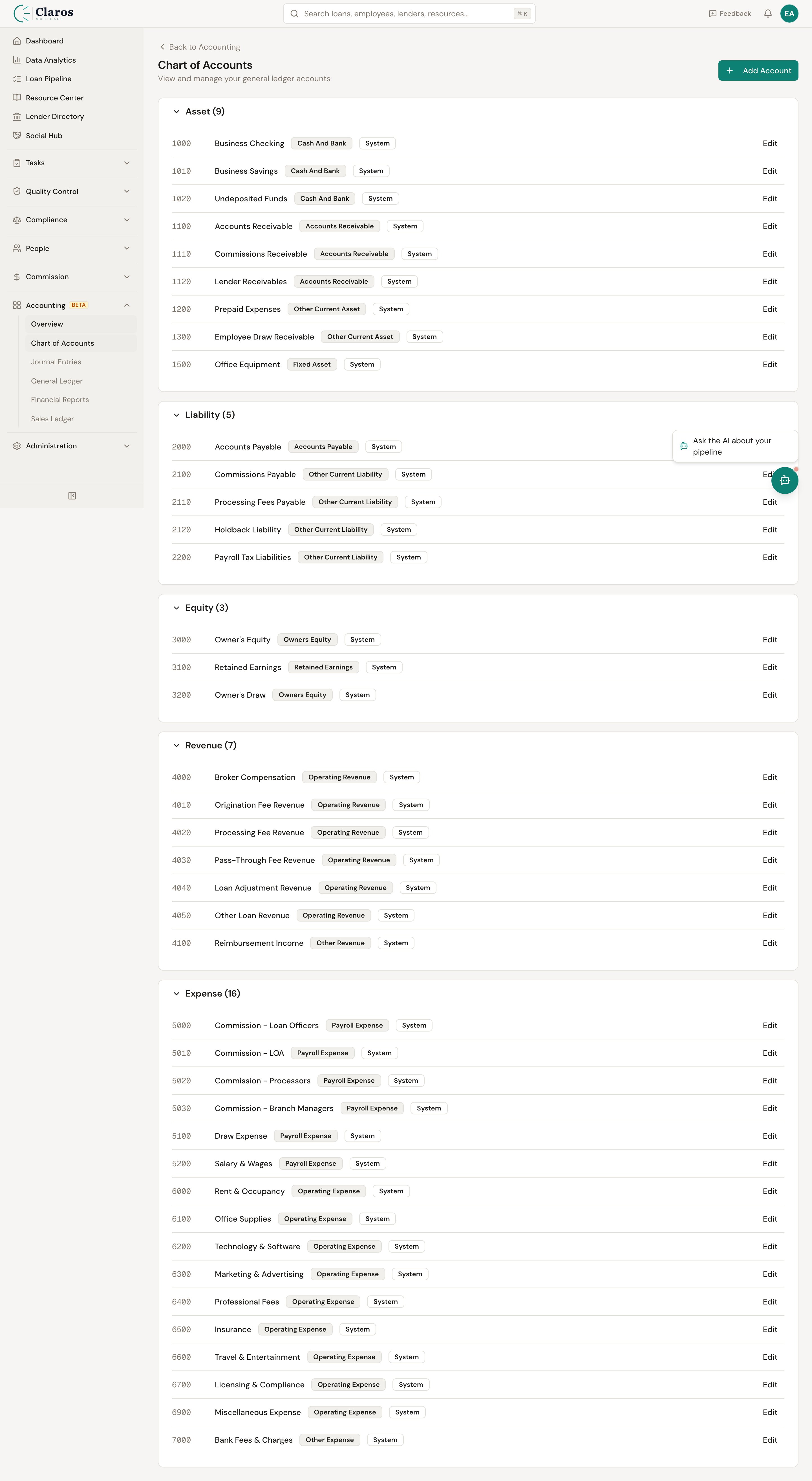
What is the chart of accounts?
The chart of accounts is a structured list of all general ledger accounts in your company. Each account represents a category of financial activity. For example:
- Cash - Operating tracks the money in your main bank account
- Accounts Receivable tracks money owed to you by lenders
- Broker Compensation Revenue tracks income earned from loan origination
- Commission Expense tracks payments to loan officers
Together, these accounts form the structure that all journal entries, the general ledger, and financial reports are built upon.
Go to Accounting > Chart of Accounts in the sidebar.
Account types
Every account belongs to one of five primary types:
| Account Type | Normal Balance | Description |
|---|
| Asset | Debit | Things your company owns or is owed (cash, receivables, equipment) |
| Liability | Credit | Obligations your company owes to others (payables, credit cards, loans) |
| Equity | Credit | Owner’s stake in the business (invested capital, retained earnings) |
| Revenue | Credit | Income earned from business operations (broker compensation, fees) |
| Expense | Debit | Costs incurred to operate the business (commissions, rent, payroll) |
- Asset, Liability, and Equity accounts appear on the Balance Sheet
- Revenue and Expense accounts appear on the Income Statement
- All accounts with balances appear on the Trial Balance
Account subtypes
Each account type has more specific subtypes that provide finer categorization. When you select an account type, the available subtypes update accordingly:
Asset subtypes
| Subtype | Use case |
|---|
| Cash and Bank | Checking accounts, savings accounts, petty cash |
| Accounts Receivable | Money owed to you by lenders, investors, or borrowers |
| Other Current Asset | Short-term assets like prepaid expenses |
| Fixed Asset | Long-term physical assets (office equipment, furniture) |
| Other Asset | Any asset that does not fit the above categories |
Liability subtypes
| Subtype | Use case |
|---|
| Accounts Payable | Money you owe to vendors or service providers |
| Credit Card | Credit card balances |
| Other Current Liability | Short-term obligations (accrued expenses, payroll liabilities) |
| Long Term Liability | Obligations due beyond one year (loans, notes payable) |
Equity subtypes
| Subtype | Use case |
|---|
| Owners Equity | Capital invested by owners |
| Retained Earnings | Accumulated profits from prior periods |
Revenue subtypes
| Subtype | Use case |
|---|
| Operating Revenue | Income from core business activities (broker compensation, origination fees) |
| Other Revenue | Non-core income (interest income, miscellaneous revenue) |
Expense subtypes
| Subtype | Use case |
|---|
| Operating Expense | Day-to-day business costs (rent, utilities, office supplies) |
| Cost of Goods Sold | Direct costs tied to revenue generation |
| Payroll Expense | Salaries, wages, commissions, payroll taxes |
| Other Expense | Expenses that do not fit the above categories |
Normal balance: debit vs credit
Every account has a normal balance — the side (debit or credit) that increases the account’s value:
- Debit-normal accounts: Asset and Expense accounts. A debit increases the balance; a credit decreases it.
- Credit-normal accounts: Liability, Equity, and Revenue accounts. A credit increases the balance; a debit decreases it.
When creating an account, Keystone automatically suggests the normal balance based on the account type. You can override this if needed, but in most cases the default is correct.
Account codes and naming conventions
Each account can have an account number (also called an account code). Account numbers serve two purposes:
-
Organization — Numbers establish a logical ordering in the chart of accounts. Common conventions:
1000-1999 for Assets2000-2999 for Liabilities3000-3999 for Equity4000-4999 for Revenue5000-5999 (or 6000-9999) for Expenses
-
Quick reference — Numbers make it faster to identify accounts in dropdowns, reports, and journal entries.
Account numbers must be unique within your company. The Chart of Accounts page sorts accounts by number by default.
Naming best practices for mortgage companies:
- Be specific: “Cash - Operating” is better than just “Cash”
- Use consistent prefixes for related accounts: “Commission Expense - LO,” “Commission Expense - Processor”
- Include the purpose in the name: “Accounts Receivable - Lender Checks”
Parent-child account hierarchy
Accounts can be organized into a hierarchy using parent-child relationships. A parent account groups related child accounts together.
For example:
1000  Cash (parent)
  1010  Cash - Operating (child)
  1020  Cash - Payroll (child)
  1030  Cash - Escrow (child)
- Organizing large charts of accounts into logical groups
- Reporting — parent accounts can summarize the balances of their children
- Readability — child accounts are indented in the account tree view
When you create or edit an account, the Parent Account dropdown lets you select any existing account as the parent. To make an account top-level, select “None (Top Level).”
System accounts vs user-created accounts
Accounts initialized from the default chart are tagged with a “System” badge. User-created accounts work identically. Both types can be edited, deactivated, and used in journal entries and mappings.
Initializing the default chart of accounts
If your chart of accounts is empty, the Chart of Accounts page displays an option to initialize a default set of accounts tailored for mortgage companies.
To initialize the default chart of accounts:
- Navigate to Accounting > Chart of Accounts.
- If no accounts exist, you will see a message: “No accounts found. Initialize a default chart of accounts to get started.”
- Click Initialize Chart of Accounts.
- Keystone creates a standard set of accounts covering the typical needs of a mortgage brokerage (cash, receivables, revenue, commission expenses, etc.).
You can always add, edit, or deactivate these accounts after initialization.
Adding a new account
Step-by-step:
- Navigate to Accounting > Chart of Accounts.
- Click the Add Account button in the page header.
- Fill in the account form:
| Field | Required | Description |
|---|
| Account Name | Yes | A descriptive name (e.g., “Cash - Operating”) |
| Account Number | No | A numeric code for ordering and identification (e.g., “1010”) |
| Account Type | Yes | Select from Asset, Liability, Equity, Revenue, or Expense |
| Sub Type | No | A more specific category within the account type |
| Normal Balance | No | Debit or Credit (auto-suggested based on account type) |
| Parent Account | No | Select a parent to nest this account under, or leave as top-level |
| Description | No | Optional notes about the account’s purpose |
- Click Create Account.
- You are redirected back to the Chart of Accounts page, where the new account appears in the appropriate type section.
Editing an account
- Navigate to Accounting > Chart of Accounts.
- Find the account you want to edit in the account tree.
- Click the Edit button on the right side of the account row.
- The edit form loads with the account’s current values.
- Make your changes and click Update Account.
You can change any field on an account, including its type, subtype, parent, and normal balance. Keep in mind that changing the account type on an account with existing journal entry lines may affect how its balance is interpreted on reports.
Deactivating an account
Accounts cannot be deleted if they have been used in journal entries, but they can be deactivated. An inactive account:
- Appears with an “Inactive” badge in the chart of accounts
- Is excluded from account dropdowns when creating new journal entries
- Retains its historical data and balances for reporting
To toggle an account’s active status, use the account management options. This is a soft operation that can be reversed at any time.
Best practices for mortgage company charts of accounts
-
Start with the default chart — Keystone’s initialization provides a solid starting point. Customize from there rather than building from scratch.
-
Use meaningful account numbers — A consistent numbering scheme makes it easier to find accounts in dropdowns and on reports. Reserve ranges for each account type.
-
Create specific revenue accounts — Track broker compensation revenue separately from other income sources. Consider separate accounts for different revenue line items if you need that level of detail.
-
Separate commission expenses by role — If you pay loan officers, processors, and branch managers differently, consider separate expense accounts for each role’s commissions.
-
Use parent accounts for grouping — If you have multiple bank accounts or expense categories, use parent-child hierarchy to keep the chart organized without losing detail.
-
Keep it lean — Only create accounts you actually need. Too many unused accounts clutter dropdowns and reports.
-
Do not delete, deactivate — If you stop using an account, deactivate it rather than trying to remove it. This preserves your historical records.

