Documentation Index
Fetch the complete documentation index at: https://docs.keystn.com/llms.txt
Use this file to discover all available pages before exploring further.
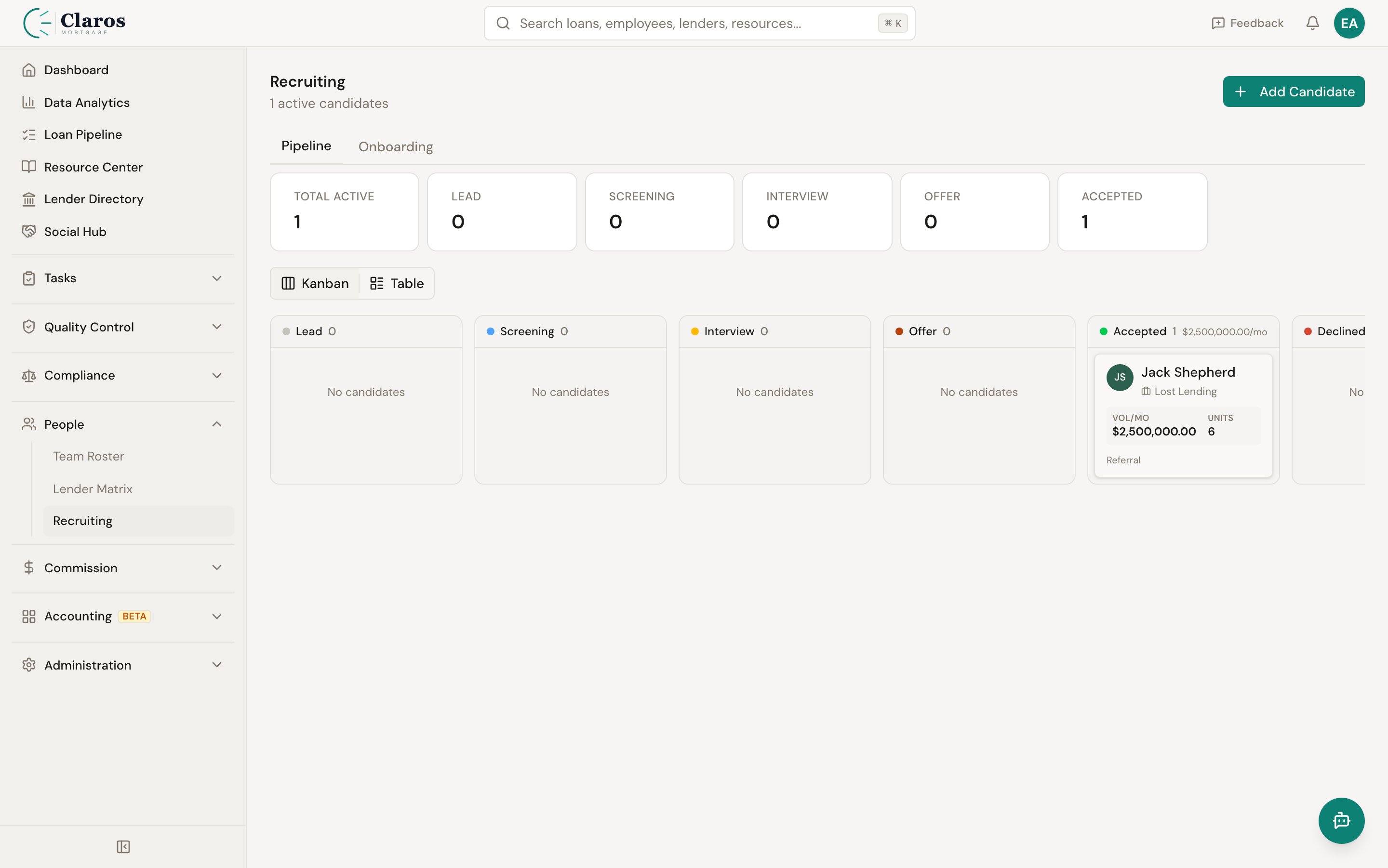
Adding a candidate
To add a new candidate to the pipeline:
- Go to Recruiting in the sidebar.
- Click Add Candidate.
- Fill in the candidate form (described below).
- Click Save.
You will be redirected to the candidate’s detail page after saving.
Candidate fields
| Field | Required | Description |
|---|
| First Name | Yes | The candidate’s first name |
| Last Name | Yes | The candidate’s last name |
| Email | No | Email address. Must be a valid email if provided. |
| Phone | No | Phone number |
| Current Employer | No | The company the candidate currently works at |
| NMLS | No | The candidate’s NMLS number for license verification |
| Field | Required | Description |
|---|
| Stage | Yes | The candidate’s current pipeline stage. Defaults to Lead. |
| Desired Role | No | The role the candidate is being considered for |
| Target Branch | No | The branch the candidate would be assigned to if hired |
| Source | No | How the candidate was identified (Referral, Job Board, LinkedIn, etc.) |
| Source Detail | No | Free-text field for additional source context (e.g., “Referred by Jane Smith”) |
Available roles
The following roles can be assigned as a candidate’s desired role:
| Role | Description |
|---|
| Loan Officer | Originates mortgage loans |
| Loan Officer Assistant | Supports Loan Officers with file management and borrower communication |
| Processor | Manages loan files from setup through closing |
| Contractor | Independent contractor providing services to the company |
| Branch Manager | Manages a branch office and its team |
Production history
| Field | Required | Description |
|---|
| Average Monthly Volume | No | The candidate’s self-reported or verified average monthly loan volume in dollars |
| Average Monthly Units | No | The candidate’s average number of loans closed per month |
Pipeline stages
Every candidate moves through a series of stages that represent their position in the hiring process.
Stage definitions
| Stage | Description | Typical actions |
|---|
| Lead | Initial identification. The candidate is in your system but has not been actively engaged. | Record basic info, identify source, begin outreach |
| Screening | Active evaluation of qualifications. | Review resume, verify NMLS and licenses, conduct phone screen |
| Interview | The candidate is interviewing with your team. | Schedule interviews, gather feedback, assess cultural fit |
| Offer | An offer has been extended to the candidate. | Use the compensation estimator, prepare and send the offer |
| Accepted | The candidate has accepted the offer and is awaiting onboarding. | Begin pre-boarding tasks, schedule start date |
| Hired | The candidate has been converted to an employee record. Set automatically during conversion. | Complete onboarding checklist |
| Declined | The candidate or company decided not to proceed. | Record reason in notes |
| Withdrawn | The candidate withdrew from the process. | Record reason in notes |
Moving candidates through stages
To change a candidate’s stage:
- Open the candidate’s detail page.
- Use the Stage dropdown to select the new stage.
- The stage change is saved immediately.
Stage changes are also reflected in the candidate list view, where stage badges are color-coded for quick visual identification:
| Stage | Badge color |
|---|
| Lead | Gray |
| Screening | Blue |
| Interview | Yellow |
| Offer | Default |
| Accepted | Green |
| Hired | Green |
| Declined | Red |
| Withdrawn | Muted |
Terminal stages
Hired, Declined, and Withdrawn are terminal stages. While the system does not strictly prevent moving a candidate out of a terminal stage, these stages represent the end of the pipeline under normal circumstances:
- Hired is set automatically when you convert a candidate to an employee.
- Declined should be used when either party decides not to move forward.
- Withdrawn should be used when the candidate removes themselves from consideration.
State licenses
For roles that require state licensing (particularly Loan Officers), you can track the candidate’s state-by-state licenses.
Adding licenses
Licenses are managed in the candidate form:
- Open the candidate form (either when creating a new candidate or editing an existing one).
- In the State Licenses section, add entries for each state.
- For each license, provide:
| Field | Description |
|---|
| State | The US state the license is issued in |
| License Number | The license number (optional) |
| Expiration Date | When the license expires (optional) |
- They help you verify the candidate’s qualifications during screening.
- When the candidate is converted to an employee, their state licenses are automatically copied to the employee record.
Adding notes
Notes provide a running record of interactions, observations, and decisions about a candidate.
Creating a note
- Navigate to the candidate’s detail page.
- Scroll to the Notes section.
- Enter your note text.
- Click Add Note.
Notes are timestamped and attributed to the employee who created them. They are displayed in reverse chronological order (newest first).
What to record in notes
Common uses for candidate notes include:
- Phone screen summaries and impressions
- Interview feedback from different team members
- Reference check results
- Compensation discussion details
- Reasons for stage changes (especially for Declined or Withdrawn)
- Follow-up reminders and next steps
Automatic notes
The system automatically creates a note when a candidate is converted to an employee, recording the conversion event with a timestamp.
Stage counts
The recruiting dashboard displays counts of candidates in each active pipeline stage, giving managers a quick overview of pipeline health. These counts exclude archived candidates and are updated in real time as candidates move through stages.
