

Documentation Index
Fetch the complete documentation index at: https://docs.keystn.com/llms.txt
Use this file to discover all available pages before exploring further.
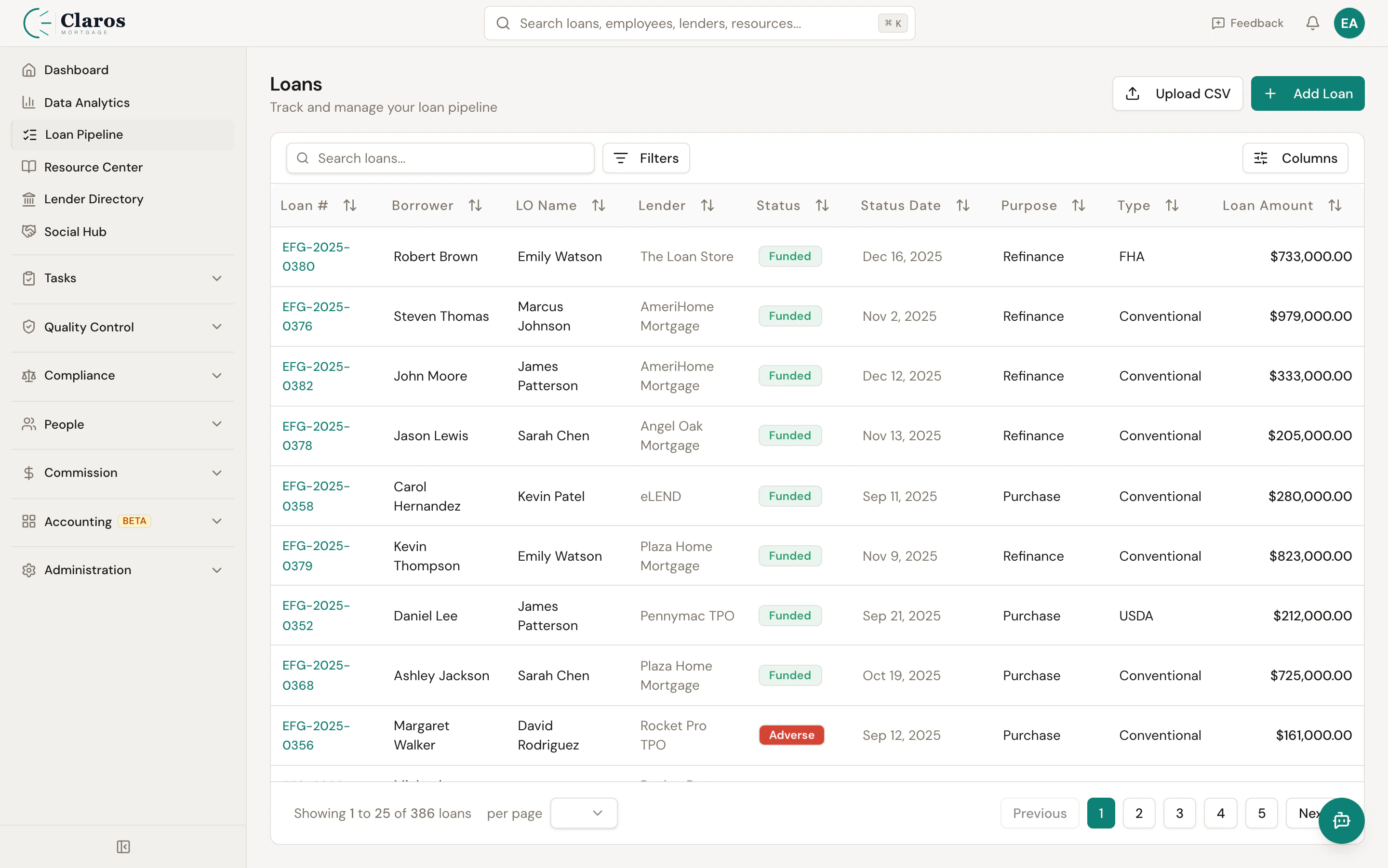
What the pipeline shows
The pipeline is a paginated table of all loans in your company. Each row displays key loan data at a glance:| Column | Description |
|---|---|
| Loan # | The broker loan number (clickable link to the loan detail page) |
| Borrower | Borrower first and last name |
| LO Name | Assigned Loan Officer |
| Lender | Lender name |
| Status | Current loan status, shown as a color-coded badge |
| Status Date | The date the loan entered its current status |
| Purpose | Purchase or Refinance |
| Type | Loan type (Conventional, FHA, VA, etc.) |
| Loan Amount | Total loan amount, formatted as currency |
Navigating to the pipeline
Click Loan Pipeline in the sidebar.Column visibility
Not every column is relevant to every user. Click the column visibility toggle in the toolbar to show or hide individual columns. Your preferences are saved in your browser and persist across sessions.Searching loans
The pipeline toolbar includes a search bar. Type a query and press Enter to search across:- Broker loan number
- Borrower first name
- Borrower last name
- Property address
Filtering loans
Click the Filters button in the toolbar to open the filter panel. You can filter by:| Filter | Options |
|---|---|
| Status | Any of the 16 loan statuses, or “All statuses” |
| Loan Officer | Any active loan officer in your company |
| Lender | Any active lender in your company |
Sorting
Click any sortable column header to sort the pipeline by that column. Click again to toggle between ascending and descending order. Sortable columns include:- Broker Loan Number
- Borrower (by last name)
- Loan Officer
- Lender
- Status
- Purpose
- Type
- Loan Amount
- Created date (default sort, newest first)
Pagination
The pipeline displays 25 loans per page by default. Navigation controls appear at the bottom of the table when there are multiple pages:- Previous / Next buttons to move between pages
- Current page indicator showing which loans are visible out of the total
Actions
Administrators have two additional action buttons in the pipeline header:- Upload CSV — Import loans in bulk from a CSV file
- Add Loan — Manually create a new loan