Documentation Index
Fetch the complete documentation index at: https://docs.keystn.com/llms.txt
Use this file to discover all available pages before exploring further.
The Commission Lifecycle
The commission process follows five stages:
1. Define Templates  -->  2. Assign Employees  -->  3. Funded Loans Enter Pay Periods
                                                              |
                                                              v
                          5. Reports & Export  <--  4. Calculate & Finalize
Stage 1: Define Commission Templates
An administrator creates commission templates that define how a particular role is compensated. A template includes:
- A base commission (e.g., 50 bps on loan amount, or $500 flat per loan)
- Optional commission rules that override the base for specific loan scenarios
- Optional special case groups for complex condition-based overrides
- An optional performance booster that adds bonuses when volume or unit thresholds are met
- Optional file fees deducted from commissions
Templates are organized by role type: Loan Officer, Loan Officer Assistant, Processor, Contractor, or Branch Manager. A company might have several templates per role — for example, a “Senior LO Plan” and a “Junior LO Plan” with different base rates.
Stage 2: Assign Employees to Templates
Once a template is configured, employees with the matching role are assigned to it. Assignment creates employee-bound commission rules in the system — copies of the template’s base commission and any override rules, linked to that specific employee.
When a template is updated, assignments can be synced so all employees under that template receive the updated commission structure.
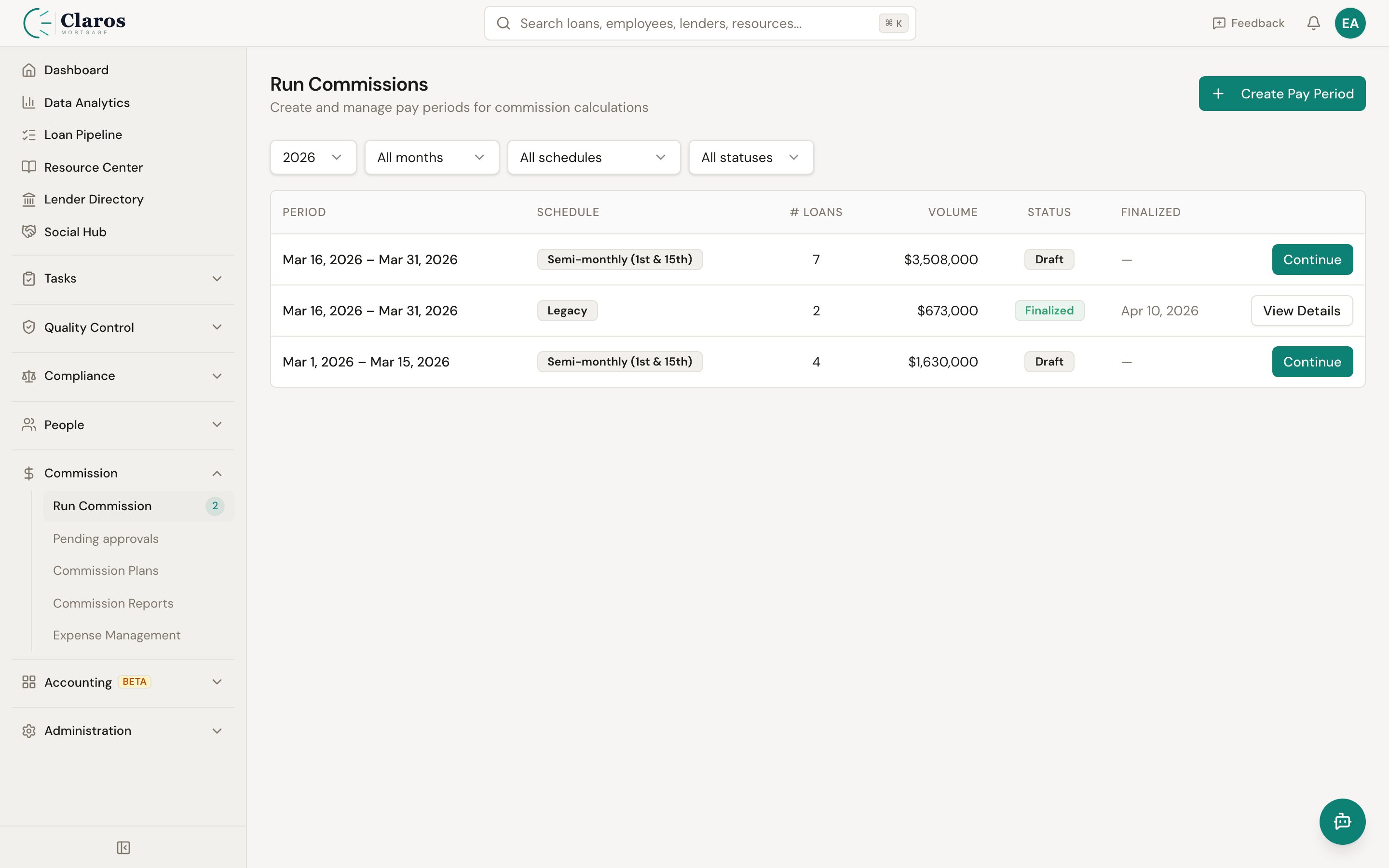
Stage 3: Loans Enter Pay Periods
When loans are funded, they are automatically grouped into pay periods based on the company’s payroll schedule. Keystone supports four pay period frequencies:
- Weekly — 7-day periods
- Biweekly — 14-day periods
- Semi-Monthly — two periods per month (typically 1st-15th and 16th-end)
- Monthly — one period per calendar month
Pay periods are created as drafts. Funded loans are assigned to the draft pay period whose date range covers the loan’s funded date. Expenses are also assigned to pay periods.
Stage 4: Calculate and Finalize
When a pay period is ready for review, the commission engine runs:
- Rule matching: For each loan, the engine finds the most specific matching commission rule for the loan officer, any assistants, processors, and branch managers.
- Gross commission calculation: The matched rule’s commission amount is applied to the loan’s basis (loan amount or broker compensation).
- File fee deduction: If the rule includes a file fee, it is subtracted from the gross commission.
- Performance bonus: If the rule is linked to a performance booster condition, the engine checks whether the employee meets the threshold and adds the bonus.
- Deductions from loan officer: If assistant, processor, or branch manager commissions are configured to “deduct from loan officer,” those amounts are subtracted from the LO’s net commission.
- Adjustments: Loan-level adjustments (manual line items that apply to commissions) are factored into the loan officer’s net.
- Employee summaries: The engine aggregates per-loan results into per-employee totals, factoring in expenses and draw balance logic.
An administrator reviews the calculated commissions in the Preview step, then finalizes the pay period. Finalization:
- Locks the pay period (it can no longer be modified)
- Records the final draw balances for each employee
- Updates each employee’s running draw balance
- Snapshots which commission rules were used
- Generates accounting journal entries for commission accruals
A finalized pay period can be unfinalized if corrections are needed, which reverses the draw balance changes.
Stage 5: Reports and Export
Finalized (and draft) pay periods are available in the Reports section. Reports provide:
- Per-employee summaries with loan count, gross commission, file fees, expenses, draw data, and net pay
- Per-loan breakdowns showing how each loan’s commission was calculated
- Individual employee detail reports with line-by-line commission items grouped by role
- CSV export for both detail and summary views
How Commissions Are Calculated
The following diagram illustrates the calculation flow for a single loan:
Loan (funded in pay period)
  |
  +--> Find matching rule for Loan Officer
  |      |
  |      +--> Calculate gross commission (basis x rate)
  |      +--> Subtract file fee (if any)
  |      +--> Add performance bonus (if qualified)
  |      +--> Subtract deductions (LOA, processor, BM commissions if "deducts from LO")
  |      +--> Add loan adjustments
  |      +--> = LO net commission
  |
  +--> Find matching rule for each Loan Officer Assistant
  |      +--> Calculate gross, subtract file fee = LOA net commission
  |
  +--> Find matching rule for each Processor
  |      +--> Calculate gross, subtract file fee = Processor net commission
  |
  +--> Find matching rule for Branch Manager (if branch exists)
         +--> Calculate gross, subtract file fee = BM net commission
Commission Amount Types
All commission amounts (base, rules, file fees, performance bonuses) can be expressed as:
| Type | Description | Example |
|---|
| Percentage | A percentage of the basis | 1.25% of loan amount |
| Flat | A fixed dollar amount | $500 per loan |
| Basis Points (Bps) | Hundredths of a percent of the basis | 50 bps (= 0.50%) of loan amount |
Commission Basis
The basis determines what dollar amount the percentage or bps is applied to:
| Basis | Description | Typical Use |
|---|
| Loan Amount | The total loan amount (e.g., $400,000) | LO commissions, branch manager overrides |
| Broker Compensation | The brokerage fee earned on the loan (e.g., $4,000) | Processor pay, LOA pay |
File Fees
A file fee is a flat or percentage amount deducted from the commission per loan. File fees can be applied on different bases:
- Loan Amount — fee calculated as a percentage of loan amount
- Loan Revenue — fee calculated on loan revenue
- Gross Commission — fee calculated on the gross commission itself
- Net Commission — fee calculated after other deductions
The “Apply File Fee First” option subtracts the file fee from the basis before calculating the commission, rather than subtracting it after.
Minimum and Maximum Commission
Both templates and rules support optional minimum and maximum commission amounts. After the commission is calculated, it is clamped to these bounds. For example, a rule might specify a minimum of $300 and a maximum of $5,000 per loan.
Role-Based Processing
The commission engine processes each loan for multiple roles:
| Role | How It Works |
|---|
| Loan Officer | Primary recipient. Matched by loanOfficerId on the rule. Receives the base commission minus file fees, plus bonuses, minus deductions, plus adjustments. |
| Loan Officer Assistant | Matched by isForLOA flag. Each assistant on the loan gets their own commission. Can optionally deduct from the LO. |
| Processor | Matched by isForProcessor flag. Each processor on the loan gets their own commission. Can optionally deduct from the LO. |
| Branch Manager | Matched by isBranchManagerOverride flag. Applied when the loan’s LO belongs to a branch. The branch manager receives a commission. Can optionally deduct from the LO. |
Draw Balance System
Many mortgage companies pay loan officers a guaranteed minimum (a “draw”) each pay period. The draw system in Keystone tracks:
- Wage paid: The guaranteed minimum payment (calculated from hourly rate or flat draw amount)
- Previous draw balance: Any accumulated deficit from prior periods
- Draw balance payment: If commissions exceed the draw, excess pays down the draw balance
- Draw balance carried over: Remaining deficit after payment (or new deficit if commissions fall short)
- Net pay: The actual amount paid to the employee
If an employee earns more in commissions than their draw, they receive the full commission amount and any excess can pay off prior draw debt. If they earn less, they receive the draw amount and the shortfall accumulates as draw balance.
Draw carry-over can be disabled per employee, in which case the draw balance resets to zero each period.
