Documentation Index
Fetch the complete documentation index at: https://docs.keystn.com/llms.txt
Use this file to discover all available pages before exploring further.
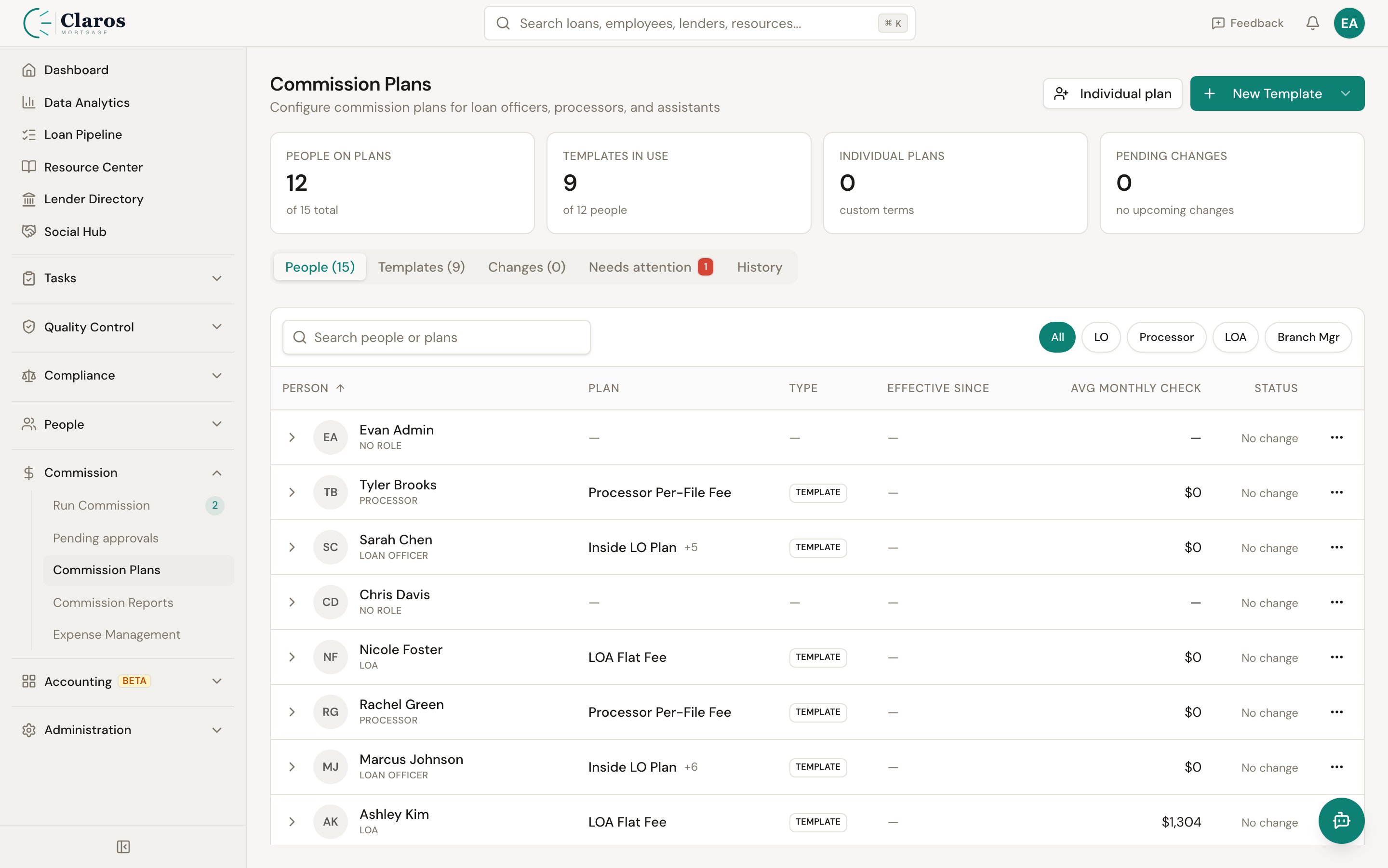
What is a commission template?
A commission template captures:
- Name — a descriptive label (e.g., “Senior Loan Officer Plan”, “Processor - Standard”)
- Role type — the employee role this template applies to
- Base commission — the default commission amount, type, and basis
- File fee — an optional per-loan fee deducted from the commission
- Commission rules — optional overrides for specific loan scenarios (see Commission Rules)
- Special case groups — optional condition-based overrides (see Special Cases)
- Performance booster — optional volume/unit bonus tiers (see Performance Boosters)
- Effective date range — optional start and end dates for when the template is active
Role Types
Each template targets one of the following roles:
| Role | Description |
|---|
| Loan Officer | The primary originator on a loan |
| Loan Officer Assistant | Supports the loan officer; commission can deduct from the LO |
| Processor | Handles loan processing; commission can deduct from the LO |
| Branch Manager | Receives an override commission on loans originated in their branch |
| Contractor | An independent contractor with their own compensation structure |
Creating a New Commission Template
Step 1: Navigate to Commission Templates
Go to Commission > Plan Templates in the sidebar and click Add Template.
Step 2: Set Template Name and Role
- Enter a Name for the template (e.g., “LO Plan A - 50bps”).
- Select the Role Type from the dropdown.
- Optionally set an Effective Date and End Date to control when the template is active.
The base commission is the default amount paid to an employee for each loan, before any rule overrides or adjustments.
-
Commission Basis — Choose what the commission is calculated on:
- Loan Amount — The total loan amount (e.g., $400,000)
- Broker Compensation — The brokerage fee on the loan (e.g., $4,000)
-
Amount Type — Choose how the commission is expressed:
- Percentage (%) — A percentage of the basis (e.g., 1.25%)
- **Flat ()** -- A fixed dollar amount per loan (e.g., \500)
- Basis Points (bps) — Hundredths of a percent (e.g., 50 bps = 0.50%)
-
Amount — Enter the commission value.
-
Minimum Commission (optional) — The lowest commission allowed per loan. If the calculated commission falls below this, the minimum is used instead.
-
Maximum Commission (optional) — The highest commission allowed per loan. If the calculated commission exceeds this, the maximum is used instead.
Example: Percentage-Based Commission
A loan officer template with 50 basis points on loan amount:
| Field | Value |
|---|
| Commission Basis | Loan Amount |
| Amount Type | Basis Points (bps) |
| Amount | 50 |
- Commission = $400,000 x 50 / 10,000 = $2,000
Example: Flat Commission
A processor template with a flat $350 per loan:
| Field | Value |
|---|
| Commission Basis | Loan Amount |
| Amount Type | Flat ($) |
| Amount | 350 |
Example: Percentage of Broker Compensation
A loan officer assistant template with 25% of broker compensation:
| Field | Value |
|---|
| Commission Basis | Broker Compensation |
| Amount Type | Percentage (%) |
| Amount | 25 |
- Commission = $4,000 x 25 / 100 = $1,000
A file fee is a per-loan deduction from the commission. It is often used to cover administrative costs.
- Fee Name — A label for the fee (e.g., “Admin Fee”, “Technology Fee”).
- File Fee — The fee amount.
- File Fee Type — How the fee is expressed:
- **Flat ()** -- A fixed dollar amount (e.g., \150)
- Percentage (%) — A percentage of a basis
- Basis Points (bps) — Hundredths of a percent
- File Fee Applied On — What the percentage/bps fee is calculated on:
- Loan Amount
- Loan Revenue
- Gross Commission
- Net Commission
Example: Flat File Fee
| Field | Value |
|---|
| Fee Name | Admin Fee |
| File Fee | 150 |
| File Fee Type | Flat ($) |
The “Apply File Fee First” Option
When enabled, the file fee is subtracted from the basis before the commission is calculated, rather than being subtracted from the commission after.
Without “Apply File Fee First” (default):
- Commission = basis x rate
- Net = commission - file fee
With “Apply File Fee First”:
- Adjusted basis = basis - file fee
- Commission = adjusted basis x rate
This results in a lower commission when using percentage-based calculations.
When creating templates for assistants, processors, or branch managers, the “Deducts From Loan Officer” checkbox controls whether the commission paid to this role is subtracted from the loan officer’s commission on the same loan.
- Enabled: The loan officer’s net commission is reduced by the amount paid to this role.
- Disabled: The commission is paid independently; the loan officer’s commission is unaffected.
This is commonly enabled for processor and LOA commissions so that the LO effectively “pays” for their support staff out of their own commission.
Step 6: Add Commission Rules (Optional)
Commission rules override the base commission for specific loan scenarios. For example, you might want a different commission rate for FHA loans or for loans from a specific lender.
See Commission Rules for full details.
A performance booster adds bonus commissions when the employee exceeds production thresholds.
See Performance Boosters for full details.
Step 8: Save the Template
Click Save to create the template. The template will appear in the list and can be assigned to employees.
Assigning a Template to Employees
Once a template is saved, you assign it to employees with the matching role.
Step-by-Step Assignment
- Open the template detail page by clicking on the template name in the list.
- In the Assignments section, click Assign Employees.
- Select one or more employees from the list. Only employees with the template’s role type who are not already assigned are shown.
- Set the Effective Date — the date from which the commission structure takes effect for these employees.
- Click Assign.
What Happens During Assignment
When employees are assigned to a template, Keystone creates commission rules for each employee based on the template’s base commission and any override rules. These rules are set to Active with the specified effective date and are used when calculating commissions for funded loans.
Unassigning an Employee
To remove an employee from a template:
- On the template detail page, find the employee in the Assignments list.
- Click the Remove action.
- All commission rules generated from this template for that employee are deleted.
Syncing Template Changes
When you update a template (change the base commission, add/remove rules, etc.), existing employee assignments are not automatically updated. To propagate changes:
- On the template detail page, click Sync Assignments.
- This deletes all employee-bound rules for the template and re-creates them from the current template settings, preserving each employee’s effective date.
Managing Templates
Activating and Deactivating
Templates can be toggled between active and inactive states. Inactive templates are not used during commission calculations, but their assignments remain in place.
Duplicating a Template
To create a new template based on an existing one:
- On the template detail page, click Duplicate.
- A copy is created with “(Copy)” appended to the name, set to Draft and Inactive.
- Edit the copy as needed, then activate it.
Deleting a Template
Deleting a template removes it and all associated rules, special case groups, and performance boosters. Employee-bound rules generated from the template are also removed.
Caution: Deleting a template that has active employee assignments will remove those employees’ commission rules. Ensure employees are reassigned to another template before deleting.

